

Introduction
It’s a well known fact that Query uses the Open Cybersecurity Schema Framework (OCSF) as our lingua franca. It is our chosen data model to normalize and standardize the disparate security and IT data we provide access to through our Security Data Mesh, and also how users express their search intent, configure pipelines, and author detections (the latter two via our Federated Search Query Language (FSQL)).
Our primary benefit is gaining access to disparate data wherever it lives, and for a majority of customers and interested folks we talk to, that data often lives in “dynamic” sources: SIEMs, Data Lakes, Data Lakehouses, APMs, and object storage. Since the source schemas of this data can vary so much, we needed a mechanism to allow customers to provide the mapping from source to OCSF: so Configure Schema was born.
It has gone through many changes over the last two years, and our latest iteration is the most fully-feature, performant, and user friendly yet. I am excited to tell you more about it, and some plans for future iterations now that a new foundation has been set.
Configure Schema v2 Core Features
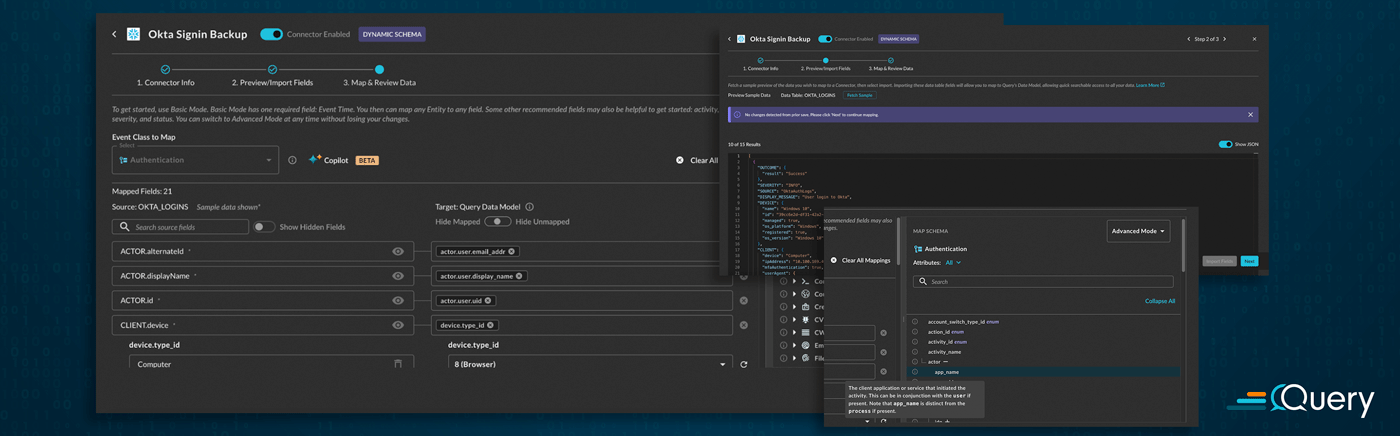
When you are configuring a Connector such as Amazon Athena, Snowflake, Splunk, Databricks, or any other dynamic schema Connector, you will be able to see the new Configure Schema user experience in its entirety. The first major change is that we have moved to a multi-step wizard, with each step on its own page in the modal. This improves load times and also allows the flow to be paused and separated. Users may have an admin who will set up the credentials and original connectivity, and another SecDataOps Engineer to do the final mappings. This replaces the single page with dropdowns.

Step 1 has not changed at all, it is where you plug in the various parameters for your sources such as table or index names, user names, credentials, and other optional flags (Connector-dependant). Step 2: Preview/Import Fields is where the first bit of changes have occurred. We have greatly sped up the process to retrieve a sample of your downstream schema and other important backend hints such as data types and data structures (e.g., Scalars versus Objects versus Arrays) that are used for Query Translation during searching, detections, and pipelining data.

We also persist this schema metadata in our backend, so upon subsequent modifications to your mapping, you do not need to refetch the entire schema. This also allows us to keep track of any schema evolution on your end – notice the message banner on the above screenshot communicating that no changes were detected. If it is your first time mapping a source, or if there have been any schema changes detected, the Import Fields button at the bottom right would be active.
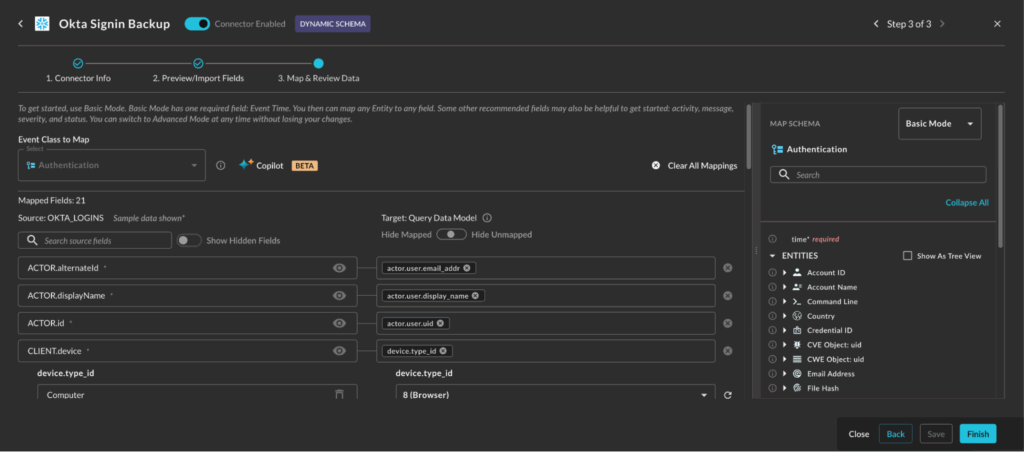
The Map and Review Data step is where a majority of the changes have been made, some of the major changes are as follows:
- Your source schema is now shown on the left, with in-line sample values from your source
- You have the ability to hide your source fields
- You have a three position selector to show all fields (default), hide unmapped fields, or hide mapped fields.
- The Query CoPilot for Configure Schema has been enhanced to combine 2 steps into 1: AI will analyze your sample data and then pick an Event Class and provide the mappings in one step.
- The entire schema for your selected Event Class is shown in the Schema Explorer on the right hand pane.
- You can choose to view the data in its nested tree-view format, or as dot-notation paths
- You can search from the explorer
- You can toggle between Basic and Advanced modes to show minimum necessary mappings versus the full schema
- Each attribute has a hover-state where you can read the OCSF-sourced description of the attribute for more information
We will go over some of these new functions in more detail in the next sections.
Better Schema Presentation & Control
The biggest rationale for putting the schema on the left was actually two-fold based on feedback and several 1000s of schema mapping sessions between internal and external users. Firstly, the page size is much smaller, while you may have a table with 100-150 fields at the largest the schema for a specific event class can easily number in the 10s of 1000s. This was expensive to render, sluggish, and caused users to need to scroll past several 1000 attributes that were non-pertinent to them.
Secondly, users likely understand their own data more than the OCSF schema. By placing what the user is familiar with first, and also providing a sample value for the field, this helps maintain focus on mapping instead of scrolling back and forth between the fetched schema example.
By also storing some sample values, we helped to simplify the mapping of enumeration-backed Attributes in OCSF. There are several 100 of these “enums” in the schema that are meant to serve as standardized values, such as the status of an event, severity, or as specific as an authentication protocol or HTTP method. Now we can prepopulate some of these values in the enums for your, to greatly speed up the process.
The other benefit to only need to track state at the source field level, which is certainly less than the entire schema, is that we can track sub-states such as if the field is mapped or hidden. There are several toggles to remove fields that aren’t important, or improve your workflow. You can hide duplicate fields, choose to hide mapped fields to attune your focus to the task at hand, or hide unmapped fields if you’re reviewing gaps left by the CoPilot.
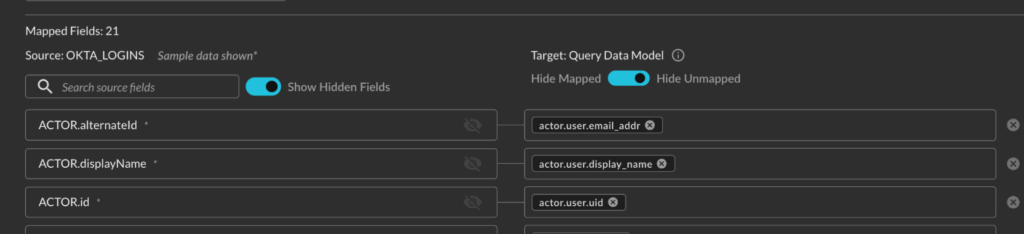
Finally, we added a search bar so you can search your own field names and we give you a counter to keep track of how many fields are mapped in total, in addition to the other controls. We only released this feature recently, but are already noticing novel tradecraft when it comes to mapping data or verifying CoPilot mappings.
Improved Co-Pilot Experience

The Query CoPilot for Configure Schema is several version revisions deep, we actually had the first iteration in our previous version of Configure Schema. A large portion of our customers would rather us just make the recommendations on the field mappings for them, so they can focus on improving security outcomes enabled by the data the Security Data Mesh gives them access to. So we have been hard at work fine-tuning models, gathering trace data for prompts, prompt engineering, and building value-added Retrieval Augmented Generation (RAG) workflows to improve the accuracy and speed of the CoPilot.
The biggest change is that when you use the CoPilot, it will both recommend an Event Class (if you have not picked one) and will provide the mappings for you in one single step. With the improved schema metadata, we have exposed that to the CoPilot to make more accurate and consistent mapping recommendations. With that, we have built a RAG workflow that uses our dense vector embeddings of the entire schema so the CoPilot has the full context of OCSF Attributes that builds upon that consistency.
Finally, we have improved our system prompt to ensure the CoPilot will be biased towards richer “minimum necessary” mappings versus taking guesses at what the fields should be if any ambiguity arises. This helps in cases where there are ambiguous fields in your source data due to poor field naming conventions, such as cases where there are multiple “versions” or “names” mentioned. In that case, the CoPilot will use the sample values to distinguish between the field meanings, but will not map fields unless it is very sure.
We never conduct any fine-tuning of the downstream model training with your data, the CoPilot is a double opt-in, where you need to be flagged for the feature and also let us know you want it turned on. Each run of the CoPilot is opaque and separated across your Connectors, so you won’t have to deal with leakage or poisoning across mapping activities.
The Schema Explorer
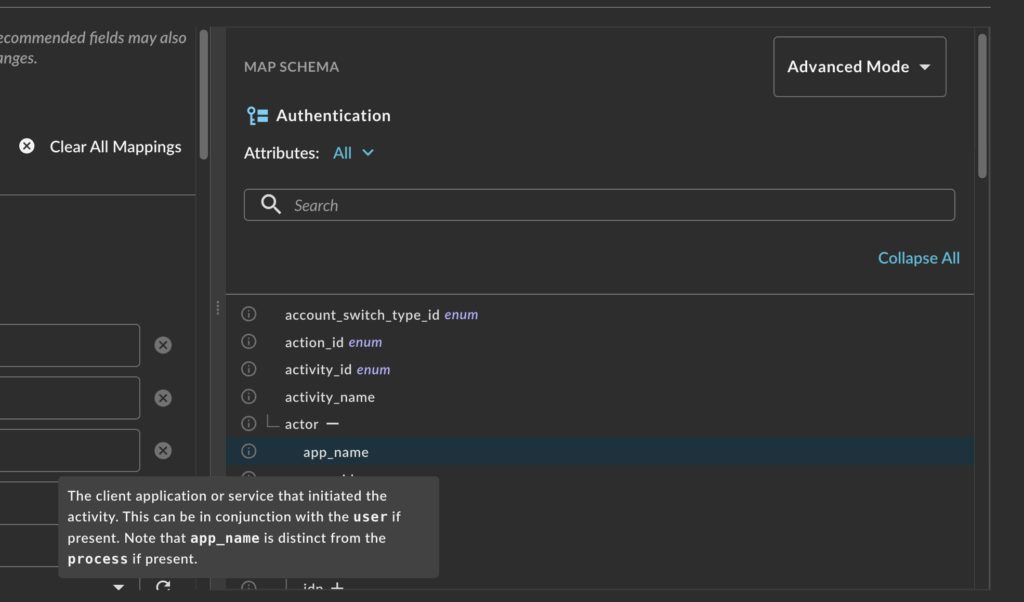
To say the OCSF is a large data model is an understatement, as mentioned earlier, depending on the Event Class you can have 10s of 1000s of Attributes when you enumerate through all of the paths. Not all of that data will be pertinent or even possible to map, while we cannot hide schema from you, we can hopefully educate you on it.
The Schema Explorer allows you to actively explore the full structure of an Event Class down to the each nested Attribute along with the description of the Attribute provided by a hover state. The workflow we’ve seen most used from this feature is to have the CoPilot map your data, set the toggle to Show Mapped, and then go through and read the descriptions of the mapped fields. Remember, this isn’t just normalization for the sake of it, since search is expressed in OCSF you also need to remember how the data was mapped too.
We will only make our CoPilot better overtime, but for now, this will hopefully serve as a useful education tool to improve your understanding of the schema to speed up subsequent mappings and operationalize the schema to your workflows and use cases.
The Road Ahead
As is often the case with things in a startup, and Query is no exception, we’re not going to settle with “good enough”. Configure Schema V2 is the result of 1000s of hours of product management, UX research, customer interviews, and engineering time and there is still more to do to help people use it.
In the immediate future (within the next 2-4 weeks) we’ll add the ability to drag-and-drop from the schema explorer. Currently, we have a typeahead dropdown for you to select your mappings from, but it will be far more intuitive to drag it from the schema explorer. We will also maintain the typeahead search so you can use one or the other, or both, whatever fits your workflow the best.
Also in the immediate future is another improved version of the CoPilot. We will allow you to have CoPilot recommend an Event Class from the event class dropdown menu. This can be useful for customers who want the distinct 2-step process or if they want to try their hand at mapping on their own but need help picking an Event Class. We will also further improve the accuracy and speed of the CoPilot with the ability to show your differentials across multiple mapping events, this is our step towards a truly conversational AI Agent we are planning.
It is our intention to have a true SecDataOps co-worker instead of a “single shot” CoPilot, you likely have important context about the data that may not be so easily communicated by the sum total of field names and sample values. Likewise, this can allow you to make on-the-fly changes and preview changes before they are made by the AI.
Finally, we are looking at ways to re-expose our old Gen 1 mapping DSL to customers. With this, we are looking to turn it from JSON into YAML to make it more user friendly to edit, and hopefully ship it with an llms-text.md file so you can train your own Agents to map data into the Query Configure Schema DSL ahead of time. This will also allow us to expose features that are hard to build great user experiences for such as complex array mapping, transformers, and other mapping tools we don’t currently expose. This is a longer pole in the tent, and not something we’ll do without a lot of testing and thought beforehand.
There are other minor things on the roadmap that we will likely trickle out as well, of course, if you’re a Query customer or are looking to become one all you need to do is ask.
We look forward to seeing how you will use the new version of Configure Schema to map your data and enable security outcomes, we’re always here to help you along or do it for you if you want!
SecDataOps Savages are standing by.
Stay Dangerous.
